How to save on events
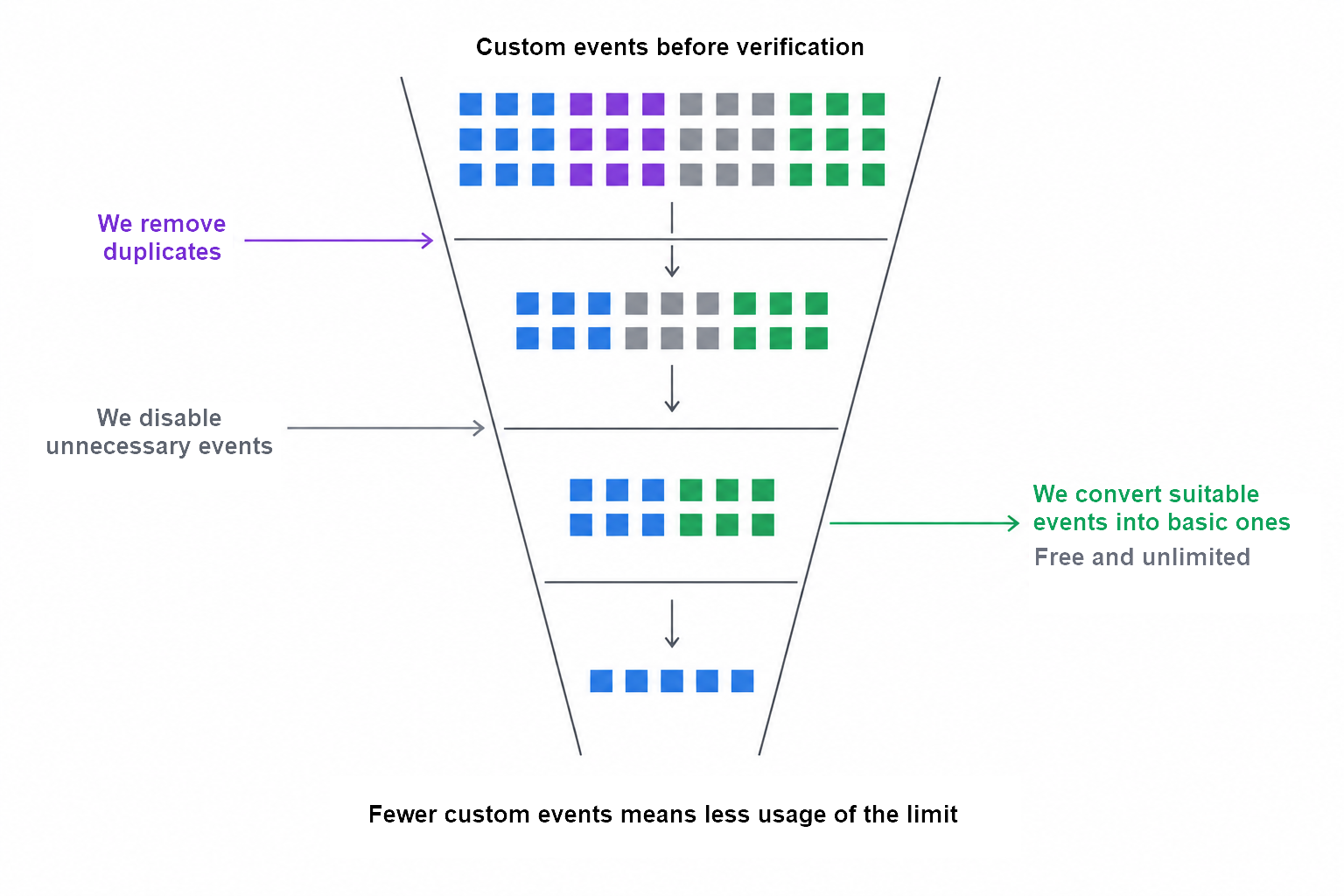
To reduce quota consumption, check which custom events are needed for analytics and which duplicate other data or are no longer used. The custom event limit applies to all apps of the organization combined.
1. Estimate the volume
In the organization account, check the volume of custom events and the contribution of apps. Current limits and the accounting procedure are described in the Help.
To find the events that consume the most quota, open the Events report of the required app:
- Select the period for which you want to estimate the volume of sends.
- In the table under the chart, sort the list of events by count — from largest to smallest.
- Look at the names of the most frequent events and expand their parameters. Match them with the markup: what action is recorded, when it is sent, and what information is transferred.
- Assess whether these events are needed for current analytics tasks, whether there are duplicates, and whether the same actions can be transferred differently — for example, with suitable basic events.
Start with the events with the highest number of sends: changes in their collection can have the greatest impact on quota consumption. If the meaning of an event is unclear from its name and parameters, clarify it with the developer or the author of the markup.
2. Remove duplicates
Check whether several events describe the same transition. For example, clicking the Next button and showing the next onboarding step may be used for one task. Keep both only when it's important to distinguish between an attempt to transition and a successful screen opening.
Also check for technical duplicates: whether one action causes multiple sends from different handlers.
3. Use suitable basic events
Check whether you are transferring actions with custom events for which basic conversion events are already provided. For example, actions with products can be transferred via Ecommerce, product scenario stages via Product Flow, in-app purchases via In-App Revenue, and ad revenue via Ad Revenue.
If an action fits a basic type, ask the developer to change the way it is transferred. Simply renaming the event is not enough. The meaning of the action is preserved, but it must be sent according to the rules of the selected basic type.
After the transition, the action will be transferred as a basic event — free, without quantity limits, and without consuming the custom event limit.
Before disabling the previous sending, check that the new event contains the required parameters and is available in the appropriate reports. If necessary, update the reports, segments, and funnels that used the old event. Then disable its custom sending so that it no longer consumes the quota.
Also check whether custom events duplicate already collected installs, sessions, purchases, and other basic events.
4. Check frequent repetitions
If you only need the count of identical actions for analysis, consider transferring one event with a counter parameter. For example, the number of repeated clicks for a selected scenario stage.
Such a replacement changes the granularity: individual actions will no longer be represented by separate events. In addition, numeric parameter values are not aggregated automatically in the Events report tree. Check the method of calculating the metric before changing the markup. Learn more — about numeric parameters.
5. Disable unnecessary events
If events continue to arrive from old app versions, open Settings → Events, select the event, and in the Event collection block set the mode to Not collected. Disabled events will stop being collected and consuming the quota. Previously received data will remain in the reports and will be counted in the quota.
6. Check the result
Compare the volume of sends after the change and make sure that the required metrics, segments, and funnels continue to work. If the quota volume is insufficient after removing unnecessary events, consider changing the plan.
To reduce limit consumption, the developer changes the sending of the selected events. The instructions below explain what to consider when switching to basic types.
For the developer: switching to basic events
Download the instructions for the developer (TXT): economy-developer-en.txt
In such cases, you can preserve the meaning of the tracked action and change its markup: bring the structure and field names to the format of the selected basic event. Pass the developer a task to set up sending using the appropriate SDK method or a suitable Post API method. Simply renaming a custom event is not enough: the sending must use the format and method of the basic event.
If you didn't find the answer you were looking for, you can use the feedback form to submit your question. Please describe the problem in as much detail as possible. Attach a screenshot if possible.