Custom events
Note
Custom events are free within 100 million per month. A larger limit is available for an additional fee.
The limit is shared across all apps of the organization. Choose a plan and increase the limit.
Custom events are events you create for actions specific to your app. They are also called client or user events. For example, you can use them to study the use of a feature, a button click, or a transition to a specific screen.
AppMetrica doesn't determine the meaning of such actions automatically. You need to choose the event name, parameters, and the moment of sending, and then pass the task of collecting them to the developer.
How to set up custom event collection
An analyst or product manager describes which actions need to be measured, passes the task to the developer, and checks the result after setup.
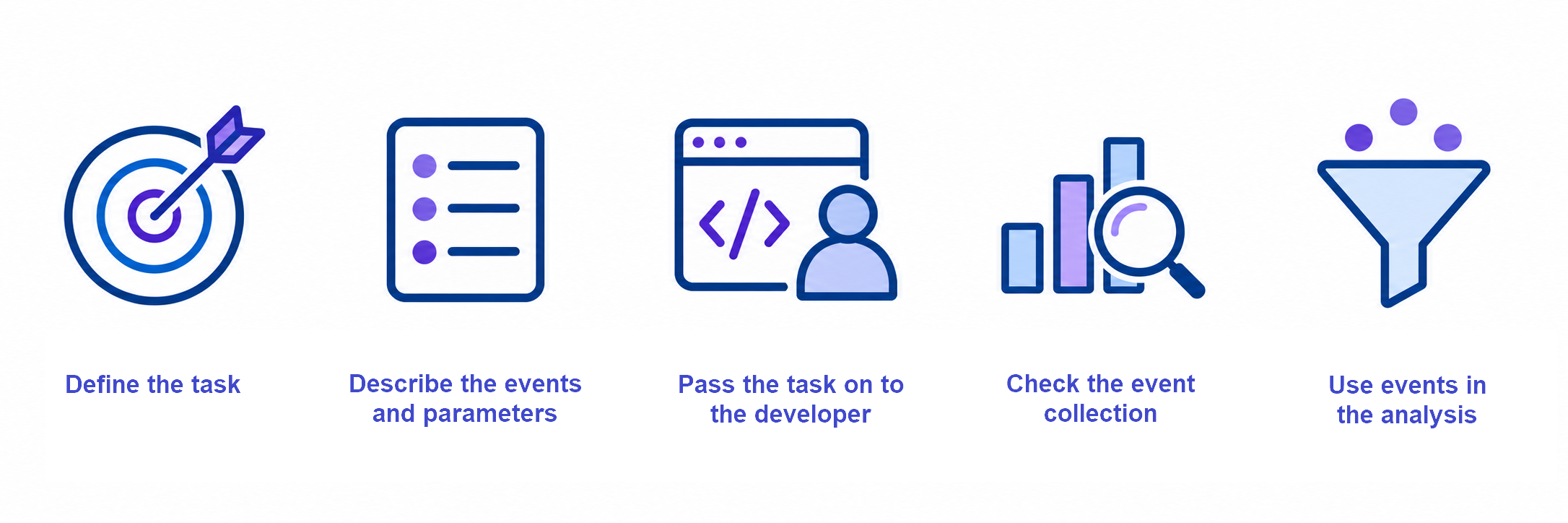
1. Define the task
Formulate the question you want to answer with events. For example: which product categories do users add to favorites most often? Choose the actions that will help you get the answer.
2. Describe the events and parameters
Create a markup — a list of events with the rules for sending them. For each event, specify:
- Name and purpose. What action the event records and what analysis it is needed for.
- Moment of sending. Under what condition the action is considered completed: for example, when a product is successfully added to favorites.
- Parameters. What action details will be needed in the report. For each parameter, specify the name, value type, and possible values.
- Expected number of sends. For example, one event for each successful product addition to favorites.
Example of markup for an online store
Task: find out which product categories are added to favorites most often.
Event: product_added_to_favorites.
When to send: once after a product is successfully added to favorites. If the addition failed or the product is already in favorites, the event is not sent.
Parameters:
product_id— product identifier, string. For example,sneakers_042.category— product category, string. For example,shoes,clothing, oraccessories.source— where the product was added from, string:catalog— from the catalog orproduct_card— from the product card.
How to check: add sneakers to favorites from the product card. The expected result is one product_added_to_favorites event with the parameters product_id: sneakers_042, category: shoes, and source: product_card.
This is an example of markup: you choose the names of events, parameters, and their values for your app.
3. Pass the task to the developer
Pass the markup and examples of actions for verification. Agree on where each action is recorded — in the app or on the server — and in which version of the app or server service the sending will appear. Ask the developer to notify you when the setup can be checked.
Technical instructions for the developer are collected below.
Note
The markup describes what action and at what moment needs to be recorded. The developer adds the sending to the app or server and transfers the parameters according to the agreed rules.
For the developer: setting up sending and event parameters
Download the instructions for the developer (TXT): custom-developer-en.txt
How to send via the SDK
The developer adds an SDK method call to the place in the code where the selected action occurs. Use the instructions for the platform:
How to send from the server
If the action information is available on the server, use event upload via the Post API. Data is transferred via an HTTP request and linked to the profile or device identifier previously transferred via the SDK.
Before setup, check the upload restrictions. Post API data is synchronized once every four hours — take this into account when checking.
Event nesting levels
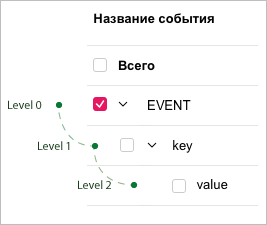
To send an event with nested parameters, pass a key:value pair. In the interface, key and value are considered nesting levels.
Note
AppMetrica allows you to pass nested parameters in an event that can have multiple levels.
When passing parameters in JSON format, each new object in the value indicates a new nesting level, for example:
{
"param1":"1",  // nesting level 1
"param2":"abc",
"param3": {
	"paramLevel2": "2", // nesting level 2
	"param2Level2": {
		"paramLevel3": "3", // nesting level 3
		"param2Level3":{
			"level": "4" // nesting level 4
      }
    }
  }
}
The AppMetrica web interface displays up to five nesting levels for events. If an event has six or more levels, the top five are shown in the report.
Note
You can use the Reporting API to get up to ten event nesting levels.
Interpretation of numeric and string values
In the AppMetrica interface, the values {"count" : 3} and {"count" : "3"} are interpreted the same way. However, when exporting data using the Reporting API or Logs API, the parameter is exported in the form in which it was sent to the server.
If the same event is passed multiple times with different numeric parameter values, the parameter values are not aggregated in the web interface. Each value is recorded and calculated separately.
Note
You can use the Reporting API to export additional fields: the total and average of all numeric values.
Partially matched nested events
You can pass different parameter values with the same event at all times.
If the server receives events with repeated parameters, their values are accumulated, and the report displays the count of each passed variant.
If the server receives events with repeated parameters but different nesting depths, their values are accumulated based on the repeated parameters.
For example, the first event has two nesting levels:
{
    "param1": "param2"
}
The second one has three nesting levels:
{
    "param1": {
        "param2": "value"
    }
}
In the web interface, these events are displayed as a tree view:
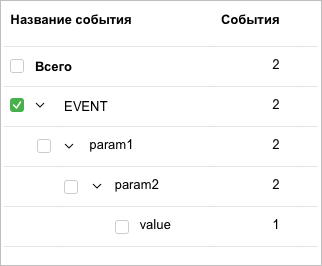
Events are counted using the following algorithm:
- The event is recorded, along with two of its sublevels. 1 is added to each parameter.
- 1 is added to the event name and three of its sublevels.
4. Check event collection
After setup, perform the prepared test actions in the agreed app version. Open the Events report and check:
- Whether the event with the name from the markup appeared.
- Whether the required parameters are transferred and whether their values match the performed action.
- Whether the number of events matches the expected number of sends.
Repeat the check with other parameter values. If the result differs from the markup, pass the developer a description of the action, the expected result, and what you saw in the report. After the fix, repeat the check. When sending via the Post API, keep in mind that events are synchronized once every four hours.
5. Use events in analysis
After checking, use the events and their parameters in the Events report. To analyze the sequence of actions and find the stages where users stop, set up a funnel.
How events are counted
Custom events consume the organization's quota. Sending with parameters counts as one event regardless of the number of parameters and nesting depth. Current terms are given in the limit description, and optimization recommendations are in the article How to save on events.
If you didn't find the answer you were looking for, you can use the feedback form to submit your question. Please describe the problem in as much detail as possible. Attach a screenshot if possible.