Crashes and errors
This section helps you understand which failures prevent people from using the app and pass the development team the information for fixing them.
How a crash differs from an error
Crash — an abnormal termination of the app. For example, a user opens a product card, and the app unexpectedly closes.
Error — a problem in which the app can continue working. For example, a product card didn't load, but the user can return to the catalog. Such information will appear in AppMetrica if the developer configured the sending of a message about it.
These are examples: which errors to track is determined by the team based on the app's tasks.
How to start collecting
Ask the developer to check crash collection and configure the sending of errors important for the product together with them. On your side, describe the situations to track: what the user is trying to do, what goes wrong, and how it prevents completing the action.
For example, for an online store, you can separately track cases when a product card doesn't load or a product can't be added to the cart. Agree with the developer on the names and descriptions of errors so that you can then recognize them in the report.
How to get a clear description of a failure
Sometimes the app sends a failure message in which it's not visible where exactly the problem occurred. To let AppMetrica decode such a message, the developer uploads special files prepared together with the app. They help find the error location and understand its cause.
Warning
If a warning appears in the report that the failure description isn't decoded, pass it to the developer along with the app version. Ask them to check whether the required files are uploaded and configure their upload when preparing new versions.
The developer connects failure collection and uploads files to decode them. This helps get a clear description of the problem and find its cause.
For the developer: collecting crashes and errors, debug files, and verification
Download the instructions for the developer (TXT): crashes-developer-en.txt
How to configure collection
Crash collection is provided in the AppMetrica SDK. Check the integration for your platform and the transfer settings. For custom error messages, the developer adds a call to the corresponding SDK method.
For example, if the app handled a failed operation and showed the user a message, the developer can transfer the error for further analysis. Which situations to send is determined by the app team.
Links to the Android, iOS, Flutter, React Native, and Unity methods are given in the error sending instructions.
Files for decoding failures on Android and iOS
Use files that match the app build in which the failure occurred. The requirements and upload methods for each platform are given below.
Android: mapping files and debug symbols
AppMetrica allows you to collect information about native and Java crashes. You can analyze them in the Crashes and errors report. See also the Sending errors on different platforms section.
To reduce the app size, the code is optimized during the release build.
If the code was shrunk and obfuscated during the Android app build, crash information is transferred in obfuscated form. To extract data for analysis from such crash logs, AppMetrica performs deobfuscation on the server side.
To do this, upload mapping files or SO file debug symbols to AppMetrica: automatically during the app build or manually via the web interface.
To send files, connect the AppMetrica Gradle Plugin.
Note
Learn more
iOS: dSYM files
Crash information on iOS is sent in symbolicated form. It's difficult to extract data for analysis from such crash logs. To make crash logs analyzable, upload dSYM files to AppMetrica.
To upload dSYM files to AppMetrica SDK, the helper command-line tool is included. For builds using fastlane, the upload plugin is supported. With their help, you can configure automatic dSYM file upload during the app build.
Please send dSYM files only for the apps you want to publish.
Automatic upload during the build
Use fastlane to build the app:
-
Install the
appmetricafastlane plugin:fastlane add_plugin appmetricaLearn more about adding a plugin in the fastlane documentation.
-
Add the following to the
fastlane/Fastfilefile:lane :release do # Your actions before. gym( workspace: "MyApp.xcworkspace", configuration: "Release", scheme: "MyApp", export_method: "app-store" # Pass the correct export_method. ) upload_symbols_to_appmetrica(post_api_key: "Post API key") # Your actions after. endThe Post API key can be obtained in the Settings section in AppMetrica. It's used to identify your app.
Warning
The gym action with export is used to build the app. If you build the app with Xcode, the app will be recompiled after uploading to App Store Connect. Then the dSYM files generated during the build can't be used.
-
Add the dSYM file upload step using the
helpertool in Xcode. Thehelpertool is included in the AppMetrica SDK starting from version 3.8.0. It's located in the SDK archive. helper tool reference.-
Open the project in Xcode.
-
In the project navigator, select the project file.
-
In the Targets block, select your app.
-
Open the Build Phases tab.
-
Click the + button → New Run Script Phase.
-
In the Type a script text field, add:
if [ -d "${PODS_ROOT}/AppMetricaCrashes" ]; then
HELPER_PATH=`find "${PODS_ROOT}/AppMetricaCrashes" -name "helper"`
if [ -x  "${HELPER_PATH}" ]; then
"${HELPER_PATH}" auto --post-api-key="Post API key"&
else
echo "AppMetricaСrash helper was not found"
fi
fi
Note
The
automode uses theCONFIGURATIONenvironment variable. If the build is built with theDebugconfiguration, dSYM files aren't uploaded. -
Uploading a missing dSYM file
If the dSYM file wasn't uploaded during the app build, the crash reports will show a warning about unsymbolicated crashes.
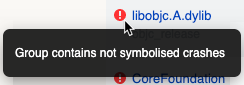
To symbolicate them, upload the missing dSYM files. The list of missing files can be viewed on the Settings → Crashes page of your app in AppMetrica.
Missing dSYM files can be uploaded:
- Using fastlane
- Via the web interface
- Using helper
Using fastlane
-
Install the
appmetricafastlane plugin:fastlane add_plugin appmetricaLearn more about adding a plugin in the fastlane documentation.
-
Add the following to the
fastlane/Fastfilefile:lane :refresh_dsyms do download_dsyms upload_symbols_to_appmetrica(post_api_key: "Post API key") clean_build_artifacts endIn the
download_dsymsaction, you can specify the required app version and build number:... download_dsyms(version: "1.0.0", build_number: "345") ...Learn more about the
download_dsymsaction in the fastlane documentation.
Via the web interface
-
Find the required archive with the dSYM file:
Via Xcode Organizer
- In the Xcode interface, click Window → Organizer.
- In the Archives tab, select the required app version.
- Click the Download dSYM button.
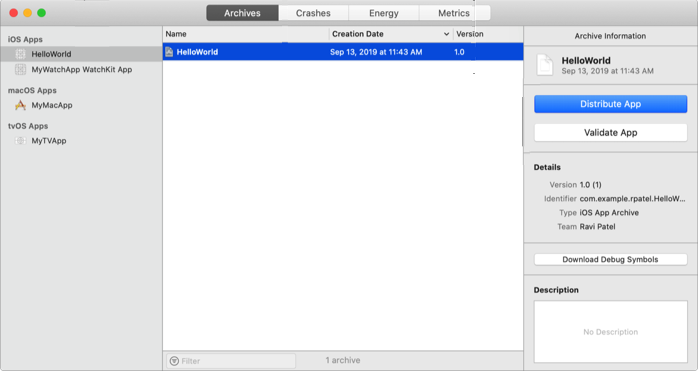
Via App Store Connect
- In the iTunes Connect interface, open the Activity page.
- In the All Builds tab, select the required build number.
- Click Download dSYM.
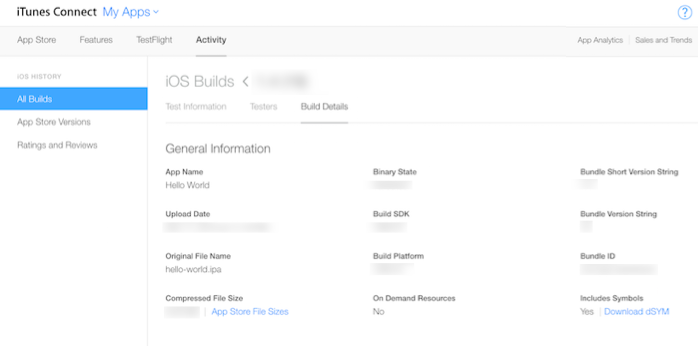
You can use the dSYM file that was generated during the build.
-
In the AppMetrica interface, go to the app settings from the left menu.
-
Open the Crashes → iOS tab.
-
Click the Select file button and upload a ZIP archive containing the
app.dSYMorappdirectories.
Using helper
To upload using the plugin, you need to connect the AppMetrica SDK version 3.8.0 or higher. To upload missing dSYM files to AppMetrica, run the command in the terminal:
helper -k <post-api-key> <file_path>
file_path is a list of dSYM files or folders containing them.
helper tool reference
Note
The helper tool is included in the AppMetrica SDK starting from version 3.8.0. It's located in the SDK archive.
Helper is a command-line tool that allows you to upload dSYM files to AppMetrica.
$ helper [auto] [-o | --package-output-path=<path>] [-v | --verbose]
         [--version] -k <post-api-key> | --post-api-key=<key> [file ...]
Parameters
|
Parameter |
Description |
|
|
Automatic upload mode. In it, |
|
|
Post API key. It can be obtained in the Settings section in AppMetrica. It's used to identify your app. |
|
|
Path to the folder where temporary files are stored. The system folder is used by default. |
|
|
Enables the display of additional information. |
|
|
Outputs the version. |
|
|
List of dSYM files or folders containing them. The local working folder is used by default. |
& allows you to run helper in parallel without blocking the build of the entire project. Example command:
helper auto --post-api-key="Post API key"&
Learn more
The Post API key can be obtained in the Settings section in AppMetrica. It's used to identify your app.
How to check the result
- In the test environment, reproduce a controlled error or failure.
- Open the Crashes and errors report and find the data of the test app version.
- Check the message, device, and call stack — the sequence of functions related to the failure.
- If the stack isn't readable, check for debug files specifically for this build.
Crashes are grouped by call stack; error grouping depends on the sending method. Details — in the crashes and errors documentation.
Sending errors on different platforms
How to work with the report
- Select a period. Open the Crashes and errors report. For example, after releasing a new version, look at the period since its release.
- Assess the scale. Compare the number of failures and the number of devices on which they occurred. Frequent failures on one device and a problem that affected many devices require different assessment.
- Find the conditions of occurrence. Look at the app versions, operating systems, and devices. Open the required group — it contains related failure cases.
- Study the actions before the failure. Open the record of a specific case and click "View session events". The history will help restore the user's actions if the corresponding events were collected.
- Pass the problem to the developer. Specify the app version, the scale of the problem, and the known user steps. A link to the task can be added to the group comment.
When assessing priority, also consider the impact on the scenario: for example, the inability to place an order may be more important than an error on a rarely used screen. The technical cause of the failure is determined by the developer.
How to check the fix
After releasing the fix, check whether the problem occurs in the new app version. Separate versions in the analysis: failures in the old version may continue to arrive while users use it.
A fixed group can be closed to separate it from current problems. If the failure appears in a version where it wasn't observed before, the group will open again.
To learn about problems by email, set up email notifications.
If you didn't find the answer you were looking for, you can use the feedback form to submit your question. Please describe the problem in as much detail as possible. Attach a screenshot if possible.