Search and hints
You don't have to browse the entire menu to find a report or setting in AppMetrica. You can use search or, if you need help understanding a tool, view a hint or ask the AI Assistant a question.
Find a section, report, or setting
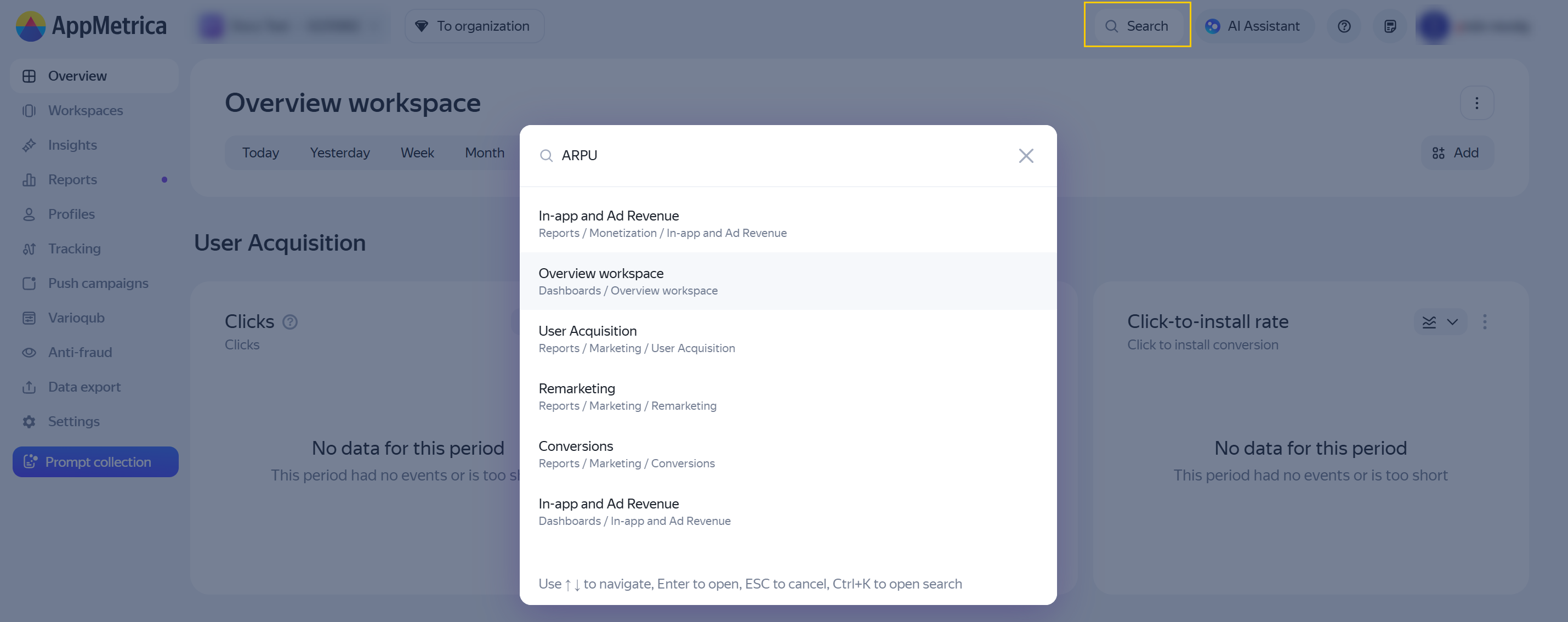
Universal search lets you find terms, reports, metrics, workspaces, and settings in one place.
- Click Search in the upper-right corner. The button is available from any section of the service.
- Enter a word or phrase to search for.
- Select the appropriate result to open it.
If you forget to switch your keyboard layout, search will correct your query. For example, the query "ФКЗГ" will be recognized as "ARPU".
Search results first show the top matches grouped by section — Reports, Workspaces, Settings, and others. The remaining results appear below, without grouping by section. The search shows up to 20 results. If you don’t find what you need, try refining your query.
Find a report by metric
If you remember the metric but don't know in which report to look for it, use the search bar in the Reports section. It searches by report names, including saved ones, and by metric names.
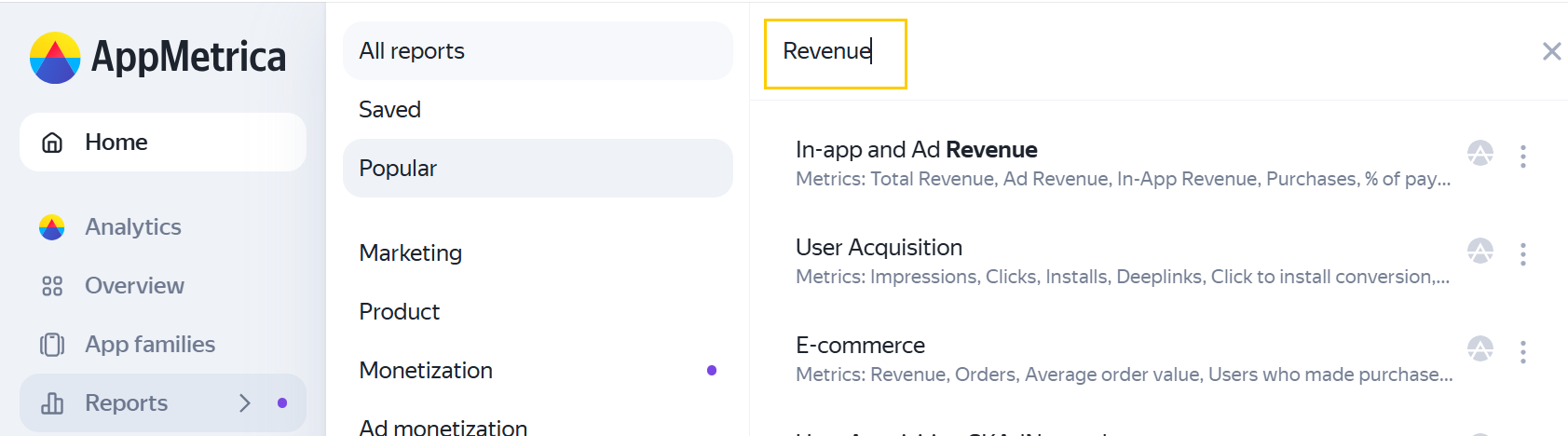
In this section, you can open all reports in alphabetical order, saved reports, or popular ones — the ones you view most often. For more information, see Reports.
Learn how the report works
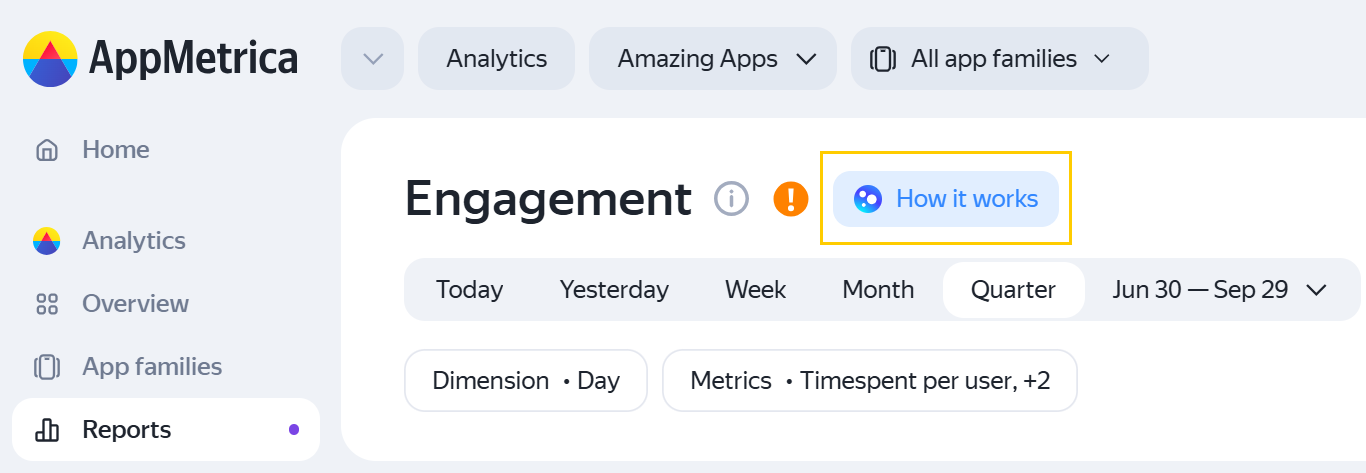
To the right of the report name, click How it works. The AI Assistant will explain how the selected report works.
If E-commerce event tracking isn't configured for the Ecommerce report, the Why don't I have data? will appear. Click it to learn why these events are needed and how to set up event reporting.
Ask the AI Assistant a question
If it’s easier to describe the task in your own words, click AI Assistant in the upper-right corner and ask a question in the chat.
For example:
- How many app installs were there last week?
- What's my Day 7 retention rate?
- How do I increase app monetization?
The assistant can find information in the documentation, find a report with the right parameters, or suggest hypotheses. The AI Assistant article describes its modes of operation and provides example questions.
If you can't find an answer
See FAQs and troubleshooting. If your question is about your account or data and you can't figure it out on your own, contact support. Explain what you were trying to do, what happened instead, and attach a screenshot.
If you didn't find the answer you were looking for, you can use the feedback form to submit your question. Please describe the problem in as much detail as possible. Attach a screenshot if possible.