Granting access
Choose which resources and features the user can access and what they're allowed to do.
1. Select a level → 2. Define the role → 3. Grant access
1. Access level
What access is needed? An organization can have one or multiple apps. Each level has its own permissions.
Plans and general statistics
- Statistics of events, DSA, and anti-fraud
- Plans, accounts, and balance
- List of organization employees
Analytics and settings
- Reports and funnels
- Trackers and app settings
- Limited access for an agency
Permissions aren't inherited across levels
Access to an organization doesn't grant access to app analytics, and access to an app doesn't grant access to the organization's invoices or statistics. If both levels are needed, grant access to each separately.
Who is the organization owner?
The owner is the user whose login was used to register a personal account. You can't change the owner. If needed, you can transfer apps to a different organization.
2. User’s role
What will the user be able to do? Select a role. The instruction for the relevant level will appear below.
|
Regular access |
|
|
Read only |
Read/edit |
|
View reports and settings. Create and edit your own funnels. Can't edit funnels created by other users. |
Manage the app, trackers, push campaigns, and user access. No permission to delete the app. |
|
Agency access |
|
|
Agency: read |
Agency read/edit |
|
View app settings and statistics for selected traffic sources and target events. Limited data viewability. |
Work with trackers and available settings. Use statistics — to the extent permitted by the access level. Can't grant other users access. |
|
Organization: view |
Organization: edit |
|
View organization settings and general statistics. Can't grant access to apps. |
According to the documentation — full organization-level permissions, including permission to grant access to others. Can't grant access to apps. |
3. Grant access
Access can be granted by the owner or a user with the standard "Read/edit" role in the relevant app.
-
Open access management.
App → Settings → Manage access. Make sure you've selected the right app.
-
Specify the user.
Enter their Yandex email address (login). If the user has no account, they need to create one.
-
Select the role.
Select one of the four roles. For an agency, specify the available ad sources and target events.
-
Click Add.
The user will receive an email with a link to the app statistics.
Where to specify the login and select the role
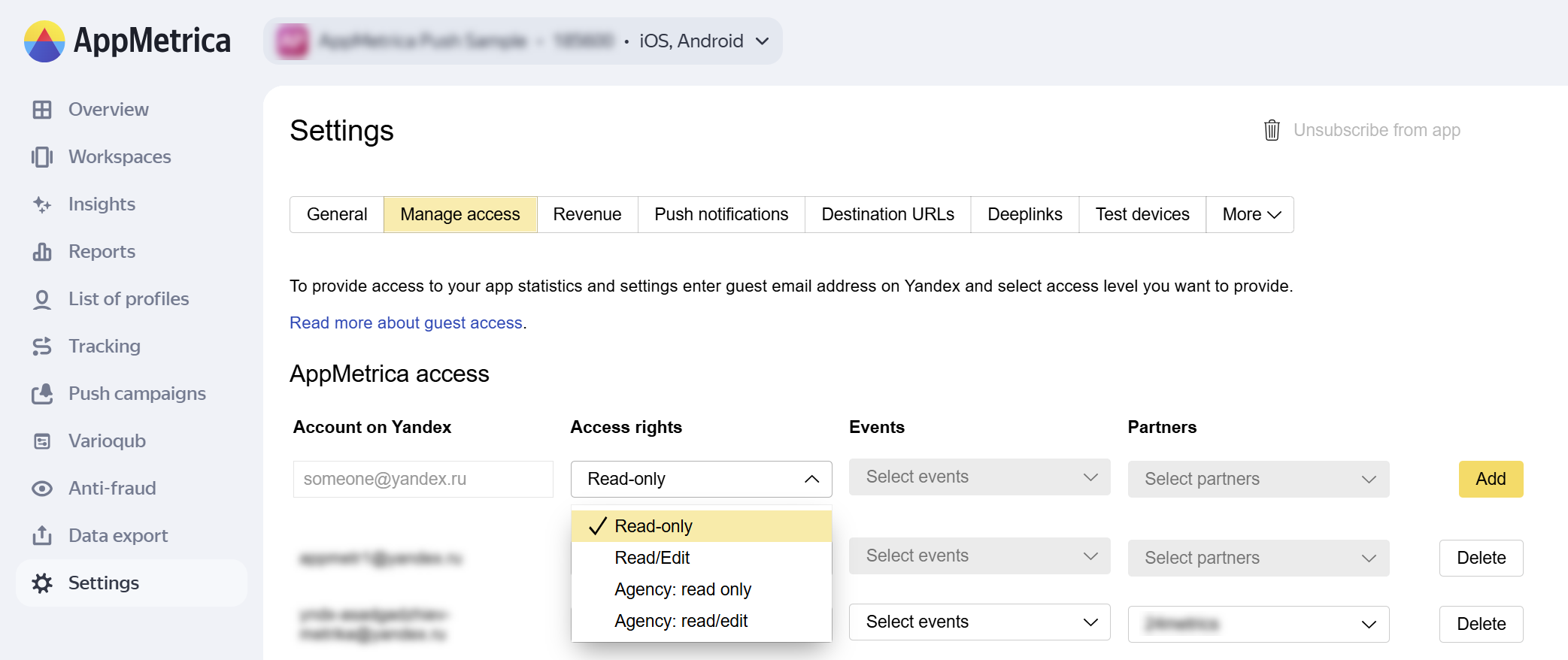
Where to check the result: Settings → Manage access. Here's a list of app users.
Access can be granted by the organization owner or a user with organization edit permissions.
-
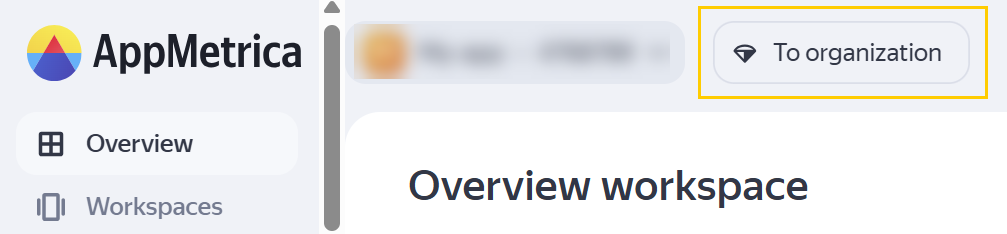
Go to the organization.
Click To organization at the top of the interface. If you don't see the button, you don't have sufficient permissions.
Where to find the "To organization" button
-
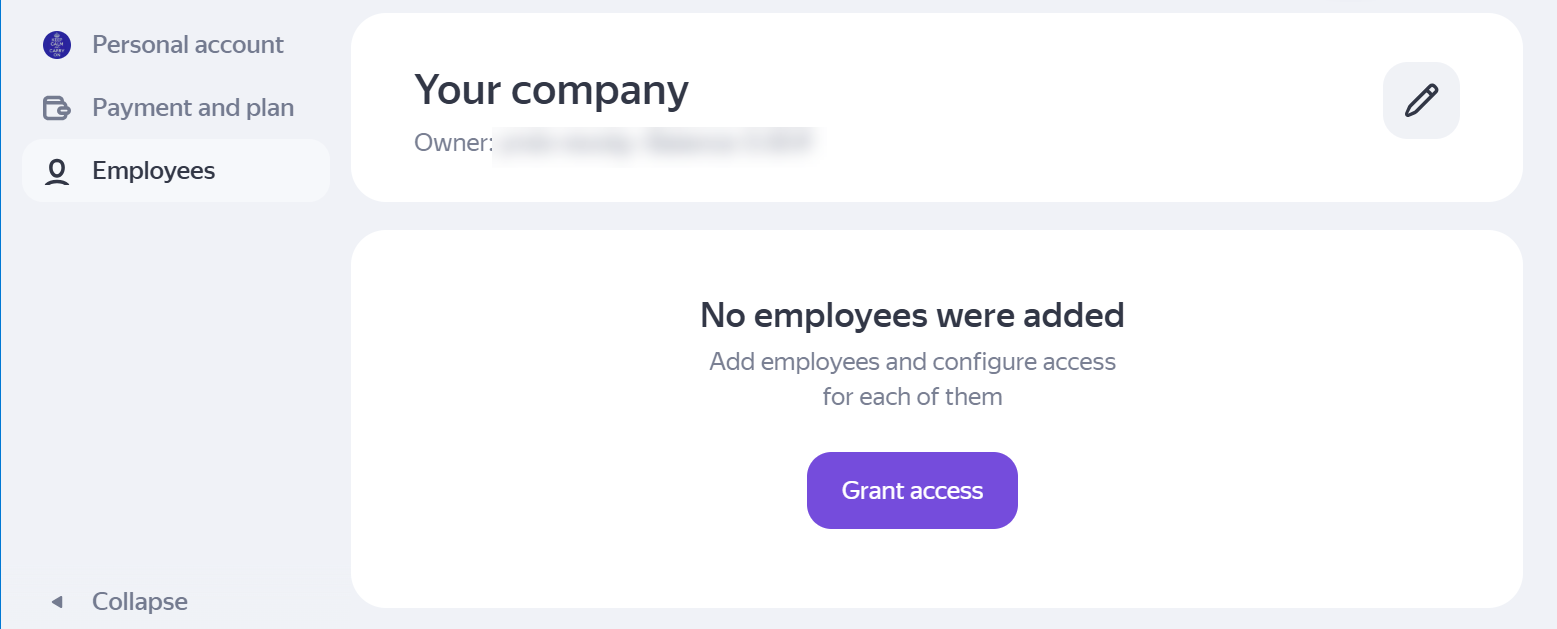
Open the employee list: Employees → Grant access.
Where to find the "Grant access” button
-
Enter the login and select the role.
Enter the part of the address before
@yandex.ru. Select View or Edit.What the organization permissions selection looks like
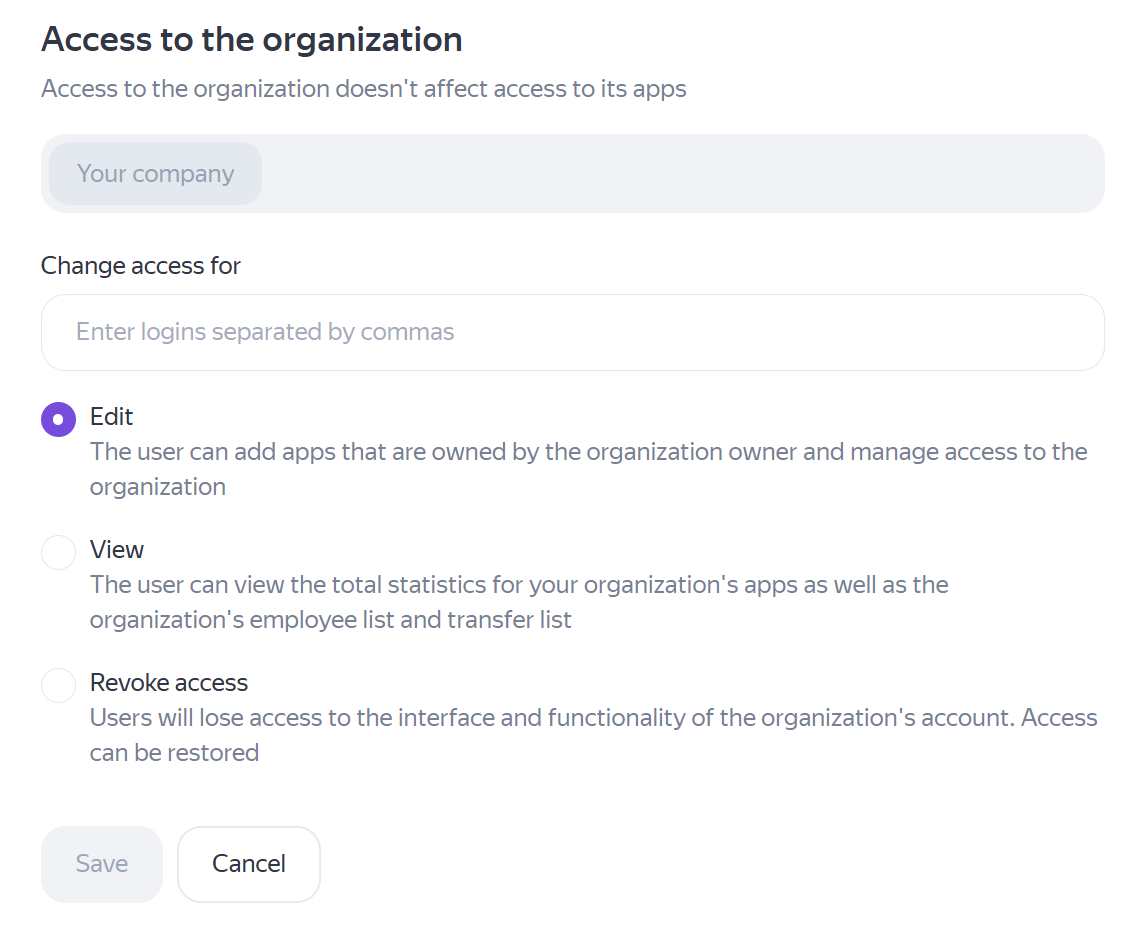
Where to check the result: the Employees section.
Compare permissions in the app
|
Action |
Read only |
Read/edit |
Agency: read |
Agency read/edit |
|
Reports and analytics |
||||
|
View the "Traffic sources" report |
Yes |
Yes |
Yes* |
Yes* |
|
View all reports |
Yes |
Yes |
No |
No |
|
Revenue metrics in User Acquisition and Remarketing |
Yes |
Yes |
Yes* |
Yes* |
|
Segmentation |
Yes |
Yes |
Yes* |
Yes* |
|
Funnels |
||||
|
Create funnels |
Yes |
Yes |
No |
No |
|
Edit own funnels |
Yes |
Yes |
No |
No |
|
Edit other users' funnels |
No |
Yes |
No |
No |
|
Tracking and campaigns |
||||
|
Create push campaigns |
No |
Yes |
No |
No |
|
View destination URLs |
Yes |
Yes |
Yes |
Yes |
|
View deeplinks |
Yes |
Yes |
Yes |
Yes |
|
Edit destination URLs |
No |
Yes |
No |
Yes |
|
Edit deeplinks |
No |
Yes |
No |
Yes |
|
Add destination URLs |
No |
Yes |
No |
Yes |
|
Add deeplinks |
No |
Yes |
No |
Yes |
|
Add trackers |
No |
Yes |
No |
Yes |
|
Settings and diagnostics |
||||
|
View test devices |
Yes |
Yes |
Yes |
Yes |
|
Edit test devices |
No |
Yes |
No |
No |
|
Add test devices |
No |
Yes |
No |
Yes |
|
Comments to crash logs |
Yes |
Yes |
No |
No |
|
Change the app name |
No |
Yes |
No |
No |
|
View the app's API key |
No |
Yes |
No |
No |
|
Managing access |
||||
|
Grant access to other users |
No |
Yes |
No |
No |
|
Delete an app |
No |
No |
No |
No |
*Yes — statistics for the selected traffic sources and target events. The organization's permissions are not included in this table.
FAQ
I have access to the organization but can't see app analytics
These are separate access levels. Ask the owner or a user with app edit permissions to grant you access to the app.
I don't see the "To organization" button
According to the documentation, this means that you don't have sufficient permissions. Contact the organization owner or a user who can grant the relevant permissions.
Why does "Read only" access allow users to work with funnels?
This role has exceptions: you can create and edit your own funnels. You can't edit funnels created by other users.
How do I revoke access to the organization?
Open the Employees section. For previously granted access, use the "Revoke access" option. Check access permissions for each app separately.
How do I change or revoke access to an app?
The user list is in Settings → Manage access. The original article doesn't describe the exact steps for changing and revoking permissions. If you're unsure how to proceed, contact support.
If you didn't find the answer you were looking for, you can use the feedback form to submit your question. Please describe the problem in as much detail as possible. Attach a screenshot if possible.